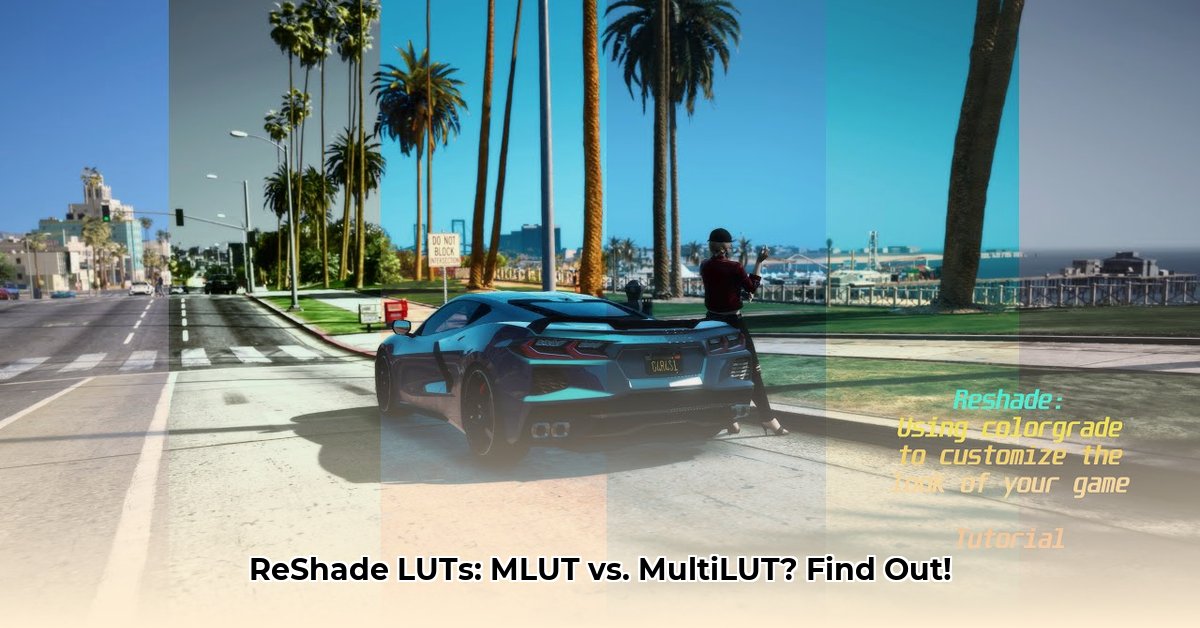
Want to enhance your gaming visuals? ReShade, combined with Lookup Tables (LUTs), offers a powerful way to dramatically alter your game's colors and lighting. This guide compares two popular ReShade LUT shaders: MLUT and MultiLUT, helping you choose the best option for your needs and skill level. We'll cover installation, usage, and troubleshooting, ensuring a smooth experience regardless of your technical expertise.
Understanding ReShade and LUTs
ReShade is a post-processing injector (a program that adds effects after the game renders) that allows you to apply visual enhancements to games without modifying their core files. LUTs, or Lookup Tables, are pre-calculated color transformations. They act as sophisticated filters, dramatically altering your game's color palette, contrast, and overall mood.
MLUT: A Vast Library of Pre-Made LUTs
MLUT, developed by TheGordinho, provides a massive library of pre-made LUTs. Its strength lies in its sheer variety, offering countless visual styles to experiment with. Installation is straightforward, making it ideal for beginners.
MLUT Advantages:
- Extensive Selection: A vast library of readily available LUTs caters to a wide range of preferences.
- Easy Installation: The setup process is quick and simple, requiring minimal technical knowledge.
MLUT Disadvantages:
- Large File Size: Numerous individual LUT files can consume significant storage space.
- Organization: Managing a large collection of LUTs can become cumbersome.
- Potential Color Artifacts: In rare cases, minor color banding or inconsistencies may occur.
MultiLUT: Compact Customization for Advanced Users
MultiLUT takes a different approach, packing multiple LUTs into a single texture file. This significantly reduces file size and improves performance, especially on systems with limited VRAM. However, utilizing MultiLUT requires a more technical understanding.
MultiLUT Advantages:
- Efficiency: The compact single-file design minimizes storage space and improves performance.
- Extensive Customization: Offers greater control over individual LUTs and allows for advanced adjustments.
MultiLUT Disadvantages:
- Steeper Learning Curve: Setting up and using MultiLUT requires more technical knowledge than MLUT.
- Technical Expertise Needed: Creating or sourcing custom LUT textures requires familiarity with image editing software.
MLUT vs. MultiLUT: A Direct Comparison
This table summarizes the key differences between MLUT and MultiLUT:
| Feature | MLUT | MultiLUT |
|---|---|---|
| LUT Management | Individual LUT files | Single texture containing multiple LUTs |
| File Size | Larger | Smaller |
| Performance | Can be slower with many LUTs | Generally faster |
| Ease of Use | Easier for beginners | Steeper learning curve |
| Customization | Limited to available LUTs | Highly customizable |
| Best Suited For | Beginners, users seeking quick results | Advanced users, those who prefer highly customizable options |
Step-by-Step Installation and Usage Guides
Installing and Using MLUT:
- Download: Obtain the MLUT files from a reputable source.
- Extract: Unzip the downloaded archive.
- Copy: Move the extracted shader files to your ReShade "Shaders" folder (usually located within your game's directory).
- Activate: Launch your game, activate the ReShade overlay, select the MLUT shader, and choose your desired LUT.
Installing and Using MultiLUT:
- Download: Download the MultiLUT shader files.
- Acquire/Create a LUT Texture: You'll need a custom LUT texture (usually a 32x32, 64x64, or 16x16 PNG image) – create one using image editing software or download a pre-made one.
- Copy: Place the MultiLUT shader files and your LUT texture into ReShade's "Shaders" folder.
- Configure: Adjust the MultiLUT shader configuration to point to your custom LUT texture file. This often requires editing a text file within the shader folder.
- Activate: Activate the MultiLUT shader and select your custom LUT via the ReShade in-game overlay.
Note: Detailed instructions can be found in the documentation provided with each shader and in online community resources which are linked next.
Troubleshooting
Common issues include incorrect file paths, incompatible shader versions, or missing dependencies. Refer to the ReShade forums and documentation for solutions. Don't hesitate to search online for specific error messages.
Conclusion: Choosing the Right ReShade LUT Shader
The optimal choice depends on your technical skills and desired level of customization. MLUT's simplicity and vast library make it perfect for beginners. MultiLUT's efficiency and customizability appeal to experienced users who want more control over their visual settings.
Further Resources
- ReShade Official Website: https://reshade.me/
- ReShade Forums: https://reshade.me/forum/ (search for MLUT and MultiLUT for specific discussions)
This guide provides a comprehensive overview of MLUT and MultiLUT. Remember to consult the official documentation and community resources for in-depth information and troubleshooting assistance. Happy gaming!
⭐⭐⭐⭐☆ (4.8)
Download via Link 1
Download via Link 2
Last updated: Tuesday, April 29, 2025